> ## Documentation Index
> Fetch the complete documentation index at: https://docs.base.org/llms.txt
> Use this file to discover all available pages before exploring further.

# Brand Guidelines

> Design and brand guidelines for Sign in With Base and Base Pay buttons

export const SignInWithBaseButton = ({colorScheme = 'light'}) => {
  const isLight = colorScheme === 'light';
  return <button type="button" style={{
    display: 'flex',
    alignItems: 'center',
    justifyContent: 'center',
    gap: '8px',
    padding: '12px 16px',
    backgroundColor: isLight ? '#ffffff' : '#000000',
    border: 'none',
    borderRadius: '8px',
    cursor: 'pointer',
    fontFamily: 'system-ui, -apple-system, sans-serif',
    fontSize: '14px',
    fontWeight: '500',
    color: isLight ? '#000000' : '#ffffff',
    minWidth: '180px',
    height: '44px'
  }}>
      <div style={{
    width: '16px',
    height: '16px',
    backgroundColor: isLight ? '#0000FF' : '#FFFFFF',
    borderRadius: '2px',
    flexShrink: 0
  }} />
      <span>Sign in with Base</span>
    </button>;
};

export const BasePayButton = ({colorScheme = 'light'}) => {
  const isLight = colorScheme === 'light';
  return <button type="button" style={{
    display: 'flex',
    alignItems: 'center',
    justifyContent: 'center',
    padding: '12px 16px',
    backgroundColor: isLight ? '#ffffff' : '#0000FF',
    border: 'none',
    borderRadius: '8px',
    cursor: 'pointer',
    fontFamily: 'system-ui, -apple-system, sans-serif',
    minWidth: '180px',
    height: '44px'
  }}>
      <img src={isLight ? '/images/base-account/BasePayBlueLogo.png' : '/images/base-account/BasePayWhiteLogo.png'} alt="Base Pay" style={{
    height: '20px',
    width: 'auto'
  }} />
    </button>;
};

## Sign in With Base & Base Pay

Base account offers two buttons to use in your application:

* [**Sign in with Base**](/base-account/reference/ui-elements/sign-in-with-base-button): for user authentication for your product
* [**Base Pay**](/base-account/reference/ui-elements/base-pay-button): payments for online and offline goods

## Sign in with Base

Integrating "Sign in With Base" offers a convenient and trusted way for users to access your services. By leveraging their established Base account, users can avoid creating and remembering new credentials, leading to a smoother onboarding and login process.

<div style={{ display: 'flex', justifyContent: 'center', backgroundColor: '#000000', padding: '20px', borderRadius: '8px' }}>
  <SignInWithBaseButton />
</div>

<br />

<div style={{ display: 'flex', justifyContent: 'center', backgroundColor: '#ffffff', padding: '20px', borderRadius: '8px' }}>
  <SignInWithBaseButton colorScheme="dark" />
</div>

### Best Practices

To provide the best possible user experience when integrating "Sign in With Base," consider the following guidelines:

* **Offer Value for Sign-in**: Clearly communicate the benefits of signing in. Users should understand why they are being asked to sign in, such as to personalize their experience, access premium features, or synchronize data across devices.

* **Prominently Display the Button**: Make the "Sign in With Base" button easily discoverable. It should be no smaller than other sign-in options and should not require users to scroll to find it.

* **Consistent Placement**: Place the "Sign in With Base" button in a consistent and logical location on your sign-in and account creation screens.

### Design & Brand Guidelines

The "Sign in With Base" button should be easily recognizable and consistent across all platforms. Adhering to these design guidelines ensures a familiar and trusted experience for users.

#### Button Appearance

The "Sign in With Base" button has two key components:

1. **The Base logo is a blue square**
   * The square never changes shades of blue, it's always `#0000FF`
   * In dark mode, the square changes color to pure white `#FFFFFF`

2. **The "Sign in with Base" text**
   * Always use "Sign in with Base" unless there's an explicit "Sign in" heading prior
   * Use "Base Sans" where possible, otherwise [create a custom button](#creating-a-custom-button)

Following are some DOs and DON'Ts for the Base branding:

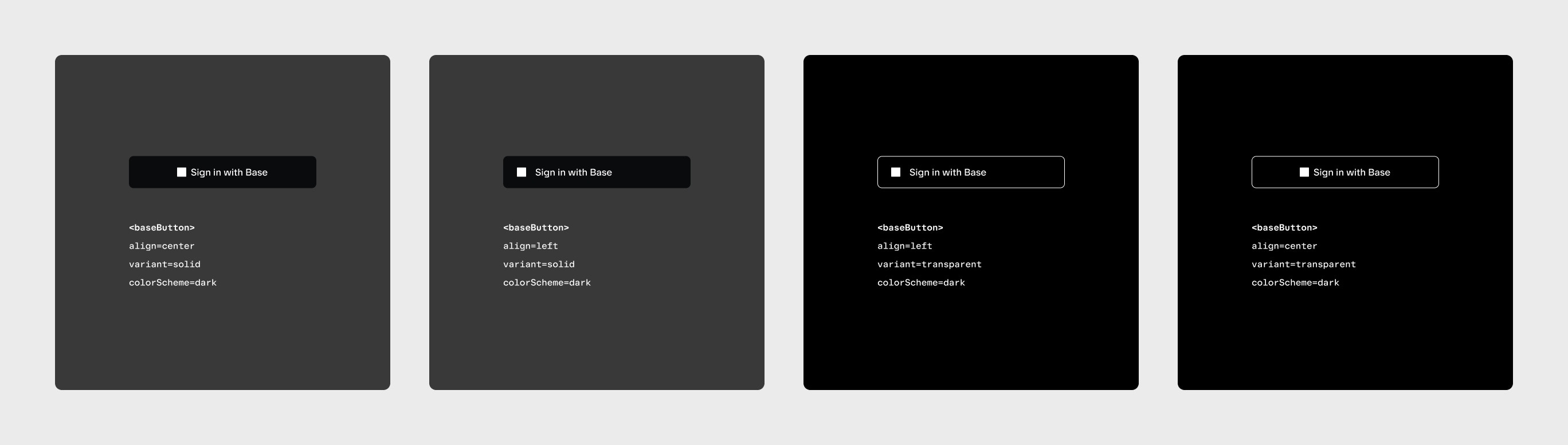
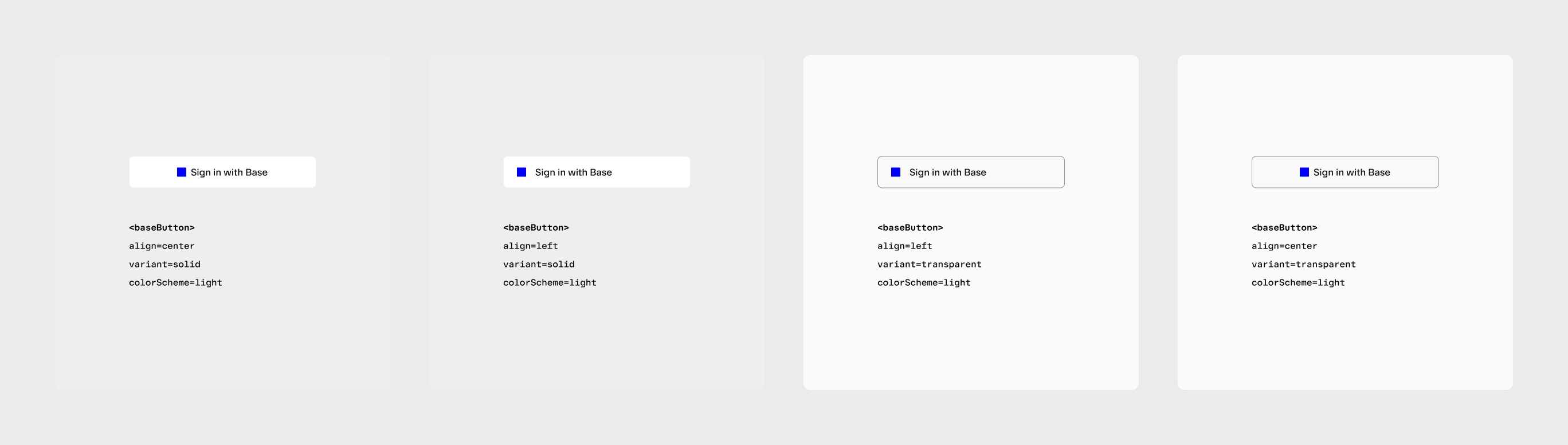
#### DO

* Leave at least 8pt of padding in-between the base square and "Sign in with Base", if creating a custom button
* Use base blue on a white/light background
* Use the all-white lockup if on a black/dark background
* Use "Sign in with Base" (including "Sign in") unless "Sign in" is present as a heading on the screen

#### DON'T

* Use gradients for the logo
* Change the corner radius of the logo
* Change the color of the Base Square
* Use Base Blue on a dark background

Base offers the following out of the box components:

<div style={{ display: 'flex', justifyContent: 'center', margin: '2rem 0' }}>
  <img src="https://mintcdn.com/base-a060aa97/zJDlWs-ElgNXh0g7/images/base-account/SIWB-Dark-Mode.jpg?fit=max&auto=format&n=zJDlWs-ElgNXh0g7&q=85&s=0a75d61bf99c642649e5e7d56a295fe4" alt="Sign in with Base Dark Mode" style={{ width: '1000px', height: 'auto', marginRight: '1rem' }} width="2736" height="777" data-path="images/base-account/SIWB-Dark-Mode.jpg" />
</div>

<div style={{ textAlign: 'center', fontStyle: 'italic', marginBottom: '2rem' }}>
  (Click to enlarge)
</div>

<div style={{ display: 'flex', justifyContent: 'center', margin: '2rem 0' }}>
  <img src="https://mintcdn.com/base-a060aa97/zJDlWs-ElgNXh0g7/images/base-account/SIWB-Light-Mode.jpg?fit=max&auto=format&n=zJDlWs-ElgNXh0g7&q=85&s=5bff70d126fcfbd682b37ef2b1a1fa48" alt="Sign in with Base Light Mode" style={{ width: '1000px', height: 'auto', marginRight: '1rem' }} width="2736" height="777" data-path="images/base-account/SIWB-Light-Mode.jpg" />
</div>

<div style={{ textAlign: 'center', fontStyle: 'italic', marginBottom: '2rem' }}>
  (Click to enlarge)
</div>

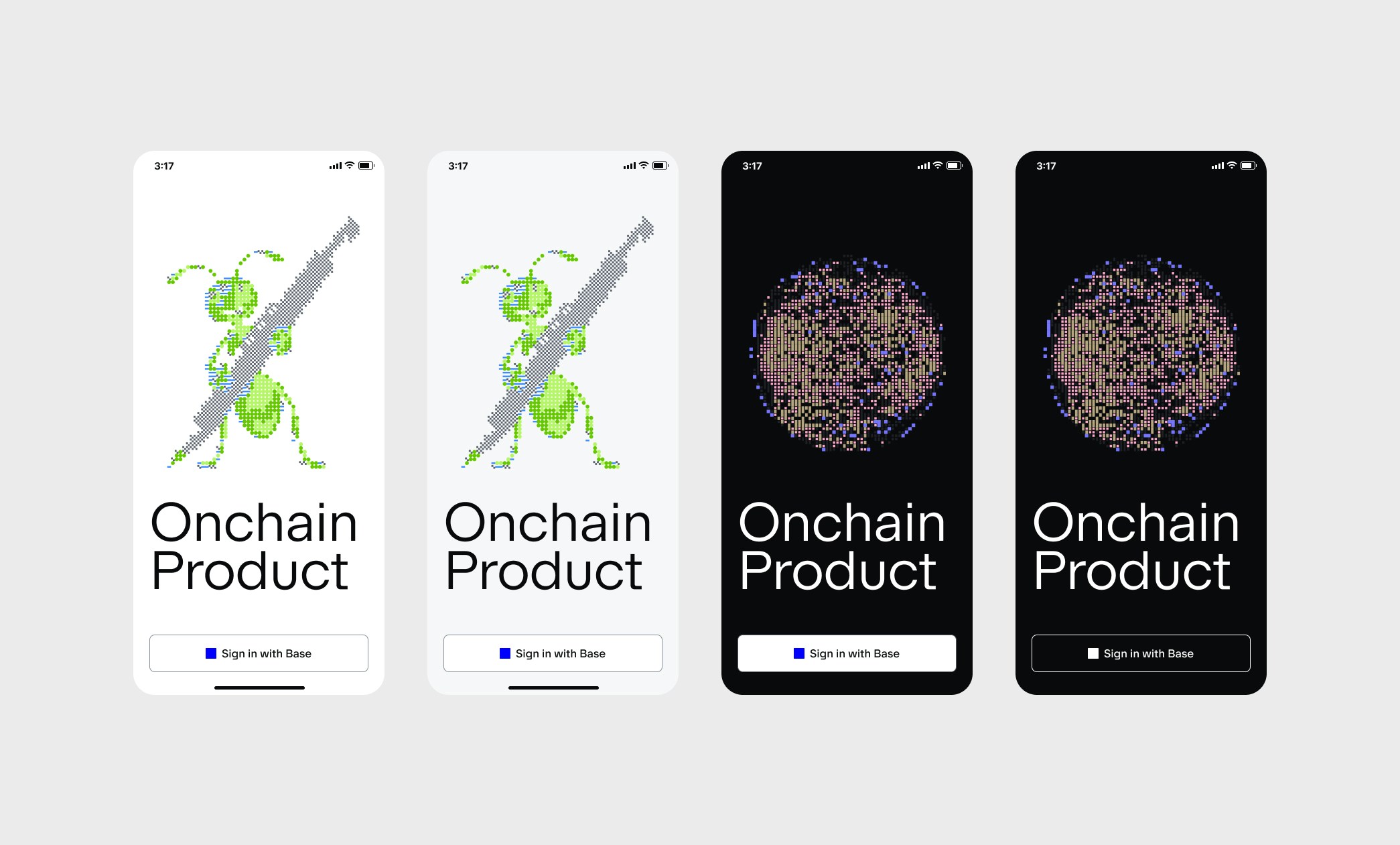
### Examples

<div style={{ display: 'flex', justifyContent: 'center', margin: '2rem 0' }}>
  <img src="https://mintcdn.com/base-a060aa97/zJDlWs-ElgNXh0g7/images/base-account/SIWB-Examples.jpg?fit=max&auto=format&n=zJDlWs-ElgNXh0g7&q=85&s=d592f8e48e5885d332eb3286973df668" alt="Sign in with Base Examples" style={{ width: '600px', height: 'auto' }} width="2090" height="1261" data-path="images/base-account/SIWB-Examples.jpg" />
</div>

<div style={{ textAlign: 'center', fontStyle: 'italic', marginBottom: '2rem' }}>
  (Click to enlarge)
</div>

### Creating a custom button

You can customize the "Sign in with Base" button to match the style of your application. Below is an example of Privy using Base branding within their user interface style.

Notice that:

* The ratio and color of the Base Square is maintained
* A "Sign in" header is present, so just "Base" is used as the sign in option

For detailed technical integration steps and API references, please refer to these docs.

## Base Pay

Integrating "Base Pay" offers one-click checkout for users with a Base Account. Integrate it into your product for easy purchase power for online and offline goods.

<div style={{ display: 'flex', justifyContent: 'center', backgroundColor: '#000000', padding: '20px', borderRadius: '8px' }}>
  <button
    type="button"
    style={{
    display: 'flex',
    alignItems: 'center',
    justifyContent: 'center',
    padding: '12px 16px',
    backgroundColor: '#ffffff',
    border: 'none',
    borderRadius: '8px',
    cursor: 'pointer',
    fontFamily: 'system-ui, -apple-system, sans-serif',
    minWidth: '180px',
    height: '44px'
  }}
  >
    <img
      src="https://mintcdn.com/base-a060aa97/zJDlWs-ElgNXh0g7/images/base-account/BasePayBlueLogo.png?fit=max&auto=format&n=zJDlWs-ElgNXh0g7&q=85&s=8eedc35d29797d5cdf1ef2d735478430"
      alt="Base Pay"
      style={{
      height: '20px',
      width: 'auto'
    }}
      width="113"
      height="24"
      data-path="images/base-account/BasePayBlueLogo.png"
    />
  </button>
</div>

<br />

<div style={{ display: 'flex', justifyContent: 'center', backgroundColor: '#ffffff', padding: '20px', borderRadius: '8px' }}>
  <button
    type="button"
    style={{
    display: 'flex',
    alignItems: 'center',
    justifyContent: 'center',
    padding: '12px 16px',
    backgroundColor: '#0000FF',
    border: 'none',
    borderRadius: '8px',
    cursor: 'pointer',
    fontFamily: 'system-ui, -apple-system, sans-serif',
    minWidth: '180px',
    height: '44px'
  }}
  >
    <img
      src="https://mintcdn.com/base-a060aa97/zJDlWs-ElgNXh0g7/images/base-account/BasePayWhiteLogo.png?fit=max&auto=format&n=zJDlWs-ElgNXh0g7&q=85&s=5d59331efc45dac990a9321755d36f35"
      alt="Base Pay"
      style={{
      height: '20px',
      width: 'auto'
    }}
      width="113"
      height="25"
      data-path="images/base-account/BasePayWhiteLogo.png"
    />
  </button>
</div>

### Design & Brand Guidelines

The "Base Pay" button should be easily recognizable and consistent across all platforms. Adhering to these design guidelines ensures a familiar and trusted experience for users.

#### Button Appearance

The "Base Pay" button always uses a combination mark. It never uses typography or text to write "Base Pay" or "base pay".

Following are some DOs and DON'Ts for the Base branding:

#### DO

* Always use the "Base Pay" combination mark
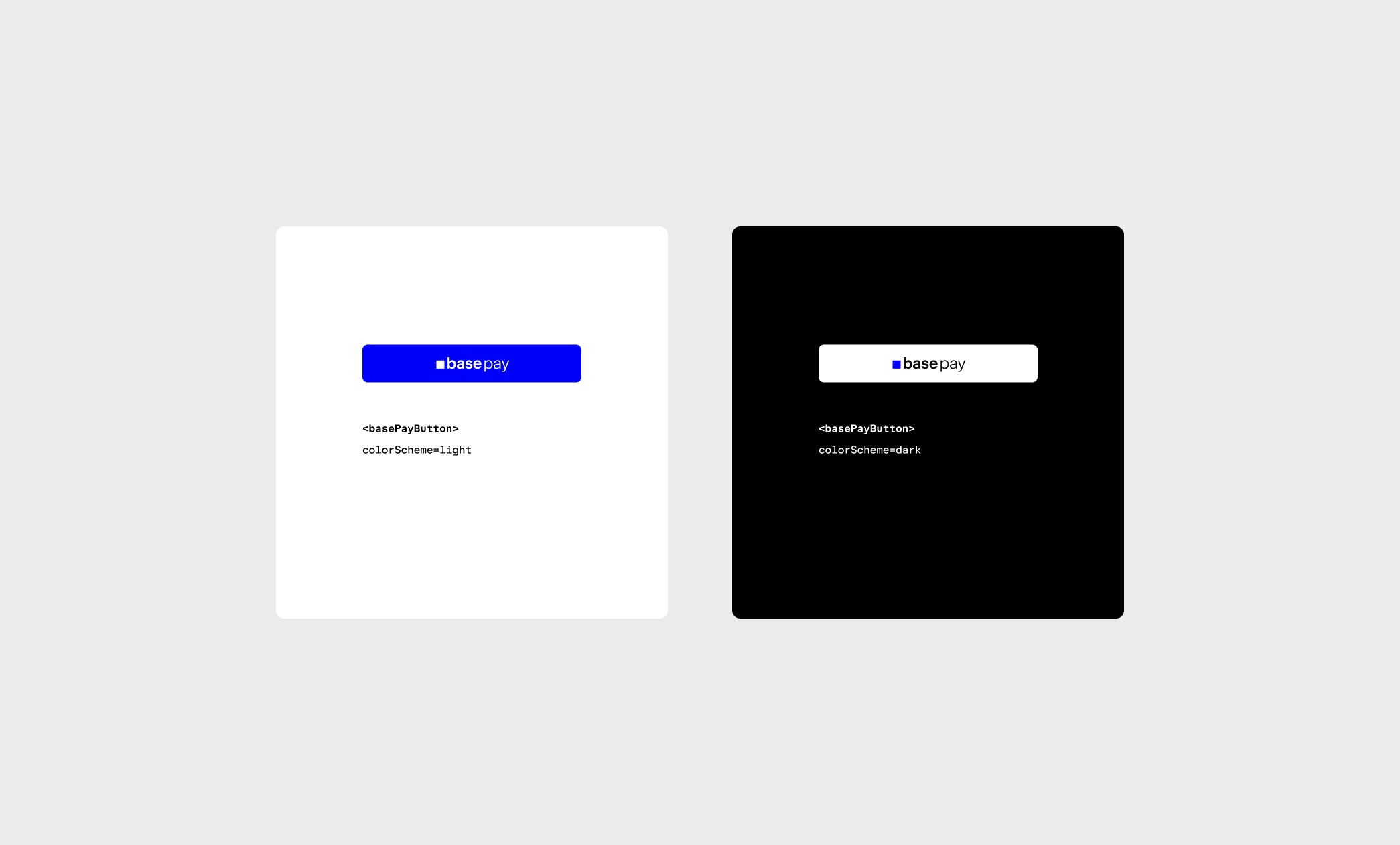
* Use the all white version of the combination mark on dark backgrounds
* Use at least 1X the height of the button for padding. If the mark is 24px high, pad the button with at least 24px on all sides

#### DON'T

* Write "Base Pay" or "base pay" using fonts or text
* Change the combination mark in any way
* Change the color of the Base Square
* Use Base Blue on a dark background

### Examples

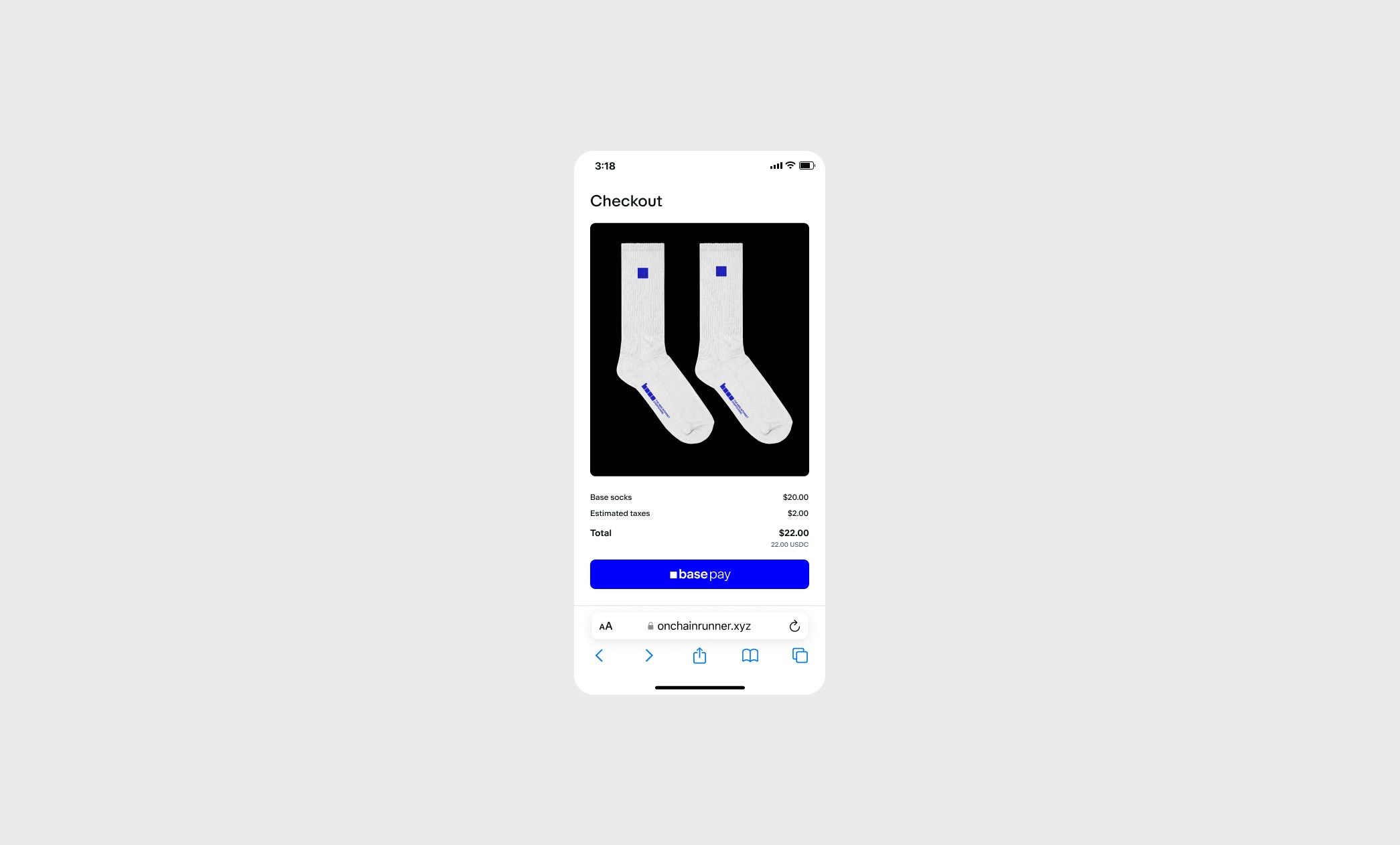
<div style={{ display: 'flex', justifyContent: 'center', margin: '2rem 0' }}>
  <img src="https://mintcdn.com/base-a060aa97/zJDlWs-ElgNXh0g7/images/base-account/BasePay-Buttons.jpg?fit=max&auto=format&n=zJDlWs-ElgNXh0g7&q=85&s=df80fbd0a70ece4a47fa57072e49ea19" alt="Base Pay Buttons" style={{ width: '500px', height: 'auto' }} width="2090" height="1261" data-path="images/base-account/BasePay-Buttons.jpg" />
</div>

<div style={{ textAlign: 'center', fontStyle: 'italic', marginBottom: '2rem' }}>
  (Click to enlarge)
</div>

<div style={{ display: 'flex', justifyContent: 'center', margin: '2rem 0' }}>
  <img src="https://mintcdn.com/base-a060aa97/zJDlWs-ElgNXh0g7/images/base-account/BasePay-Examples.jpg?fit=max&auto=format&n=zJDlWs-ElgNXh0g7&q=85&s=1edd8169a2a454ffb6c42cabe152a758" alt="Base Pay Examples" style={{ width: '600px', height: 'auto' }} width="2090" height="1261" data-path="images/base-account/BasePay-Examples.jpg" />
</div>

<div style={{ textAlign: 'center', fontStyle: 'italic', marginBottom: '2rem' }}>
  (Click to enlarge)
</div>

## Media Assets

You can find the full set of Base Brand Assets in the [Base Brand Page](https://base.org/brand).